
Installing CookieHub with GTM (Community Template)
This guide explains how to install CookieHub in your Google Tag Manager (GTM) container using the official CookieHub community template. This method includes integrated Google Consent Mode support, making it easy to manage tags based on user consent.
Important note
When implementing CookieHub with GTM, the automatic script blocker cannot block scripts loaded directly in the website’s HTML. To ensure full compliance, load all tracking and marketing tags through GTM instead of embedding them in your site’s code.
Steps to install CookieHub using the GTM community template
- Log in to your Google Tag Manager account and open the container for your website.
- Go to Tags in the left-hand menu.
-
Click New to create a new tag.

- In the tag configuration panel, click Tag Configuration.
-
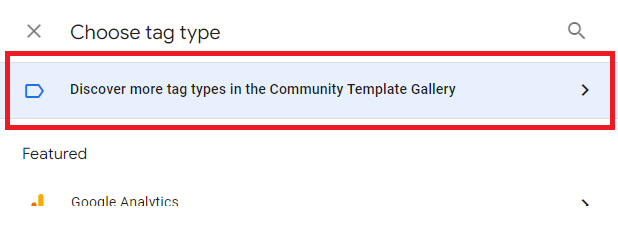
Scroll down and click Discover more tag types in the Community Template Gallery.
-
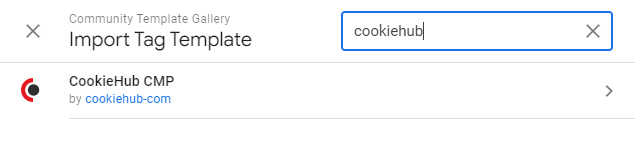
In the search field, type CookieHub CMP and select the CookieHub template from the results.
-
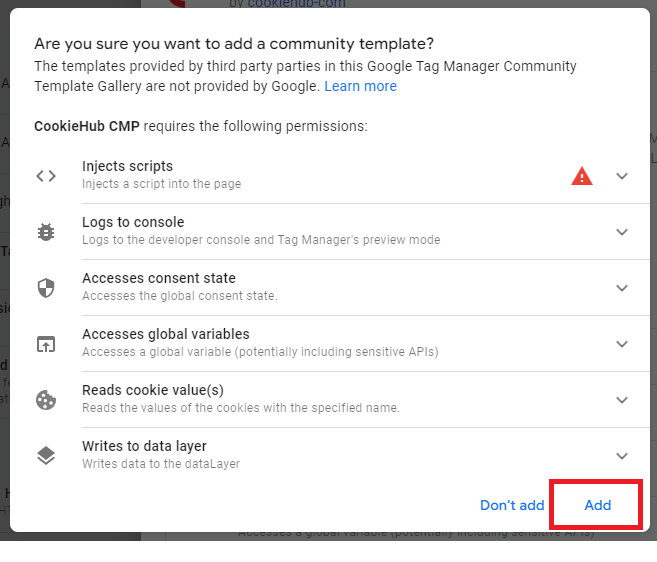
Click Add and accept the requested permissions.
-
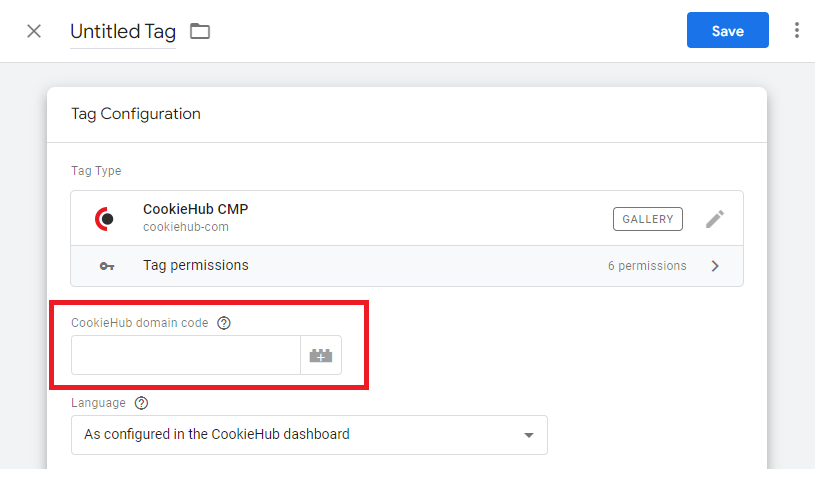
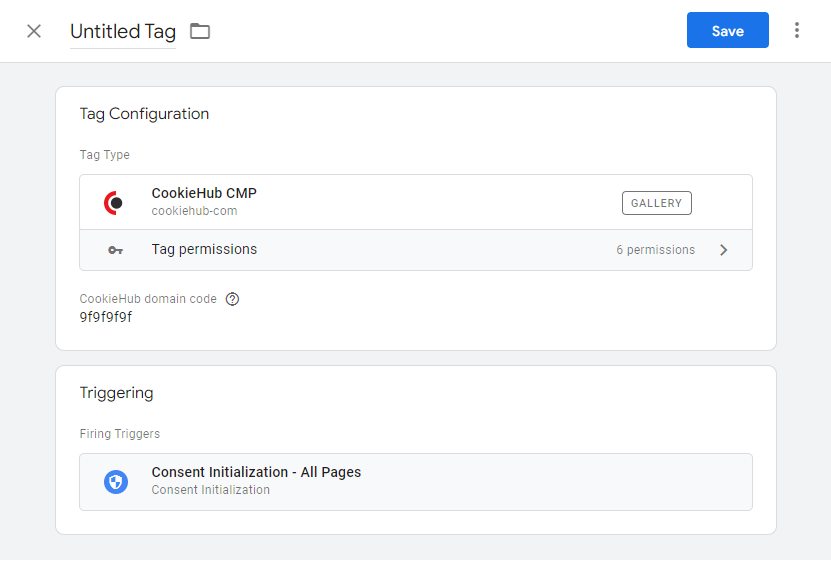
Enter your CookieHub domain code (8 characters) - Where to find your domain code
-
Under Triggering, select Consent Initialization – All Pages.
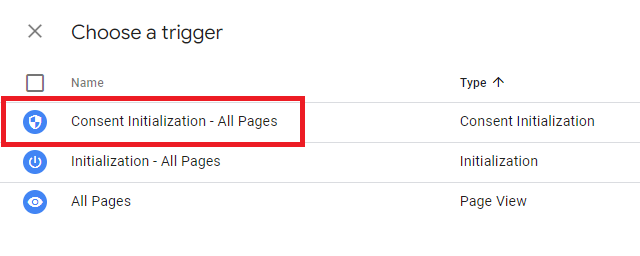
This ensures the CookieHub tag loads before other tags that require consent.
-
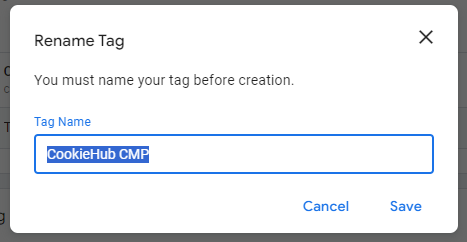
Click Save to save the tag configuration.
-
Your tag should now be named CookieHub CMP (or another name you choose).
- Click Submit in the top-right corner to publish the changes to your container.

If your CookieHub domain uses multiple regions
You need to configure region-specific consent mode defaults in GTM to ensure compliance.
See How to configure regions in GTM for detailed instructions.
If you have tags without built-in Consent Mode support
Some tags (for example, Facebook Pixel or Hotjar) do not support Google Consent Mode by default. For these tags, you must configure Additional Consent in GTM to make sure they only fire when the user provides consent.
See Configuring additional consent in GTM for detailed steps.
What happens next
CookieHub is now active in your GTM container and includes Google Consent Mode support by default. Tags such as Google Analytics, Google Ads, and Floodlight that support Consent Mode will adjust their behavior automatically based on user consent.