
Configuring additional consent in GTM
Some tags in your Google Tag Manager (GTM) container may not support Google Consent Mode natively. In those cases, you can configure additional consent settings in GTM to make sure these tags fire only when the user has given consent for the appropriate category.
Important notes
- Do not configure additional consent for tags that already have built-in Consent Mode support (such as Google Analytics, Google Ads, and the CookieHub CMP tag). These tags automatically respect user consent.
- Tags using additional consent will generally work without changing triggers. However, if a tag uses a Page View trigger, it will not fire on the first page view unless consent has already been given. To handle this, add the CookieHub – Choice Modified trigger as an additional trigger so the tag fires after the user makes a choice.
Create the “CookieHub – Choice Modified” trigger
If you installed the CookieHub GTM community template, you need to manually create the CookieHub – Choice Modified trigger for tags that require additional consent. If it already exists, you can skip these steps.
- In your GTM container, go to Triggers.
- Click New.
- Under Trigger Configuration, select Custom Event from the Other section.
-
In the Event Name field, enter:
cookiehub_modified(No other changes are needed)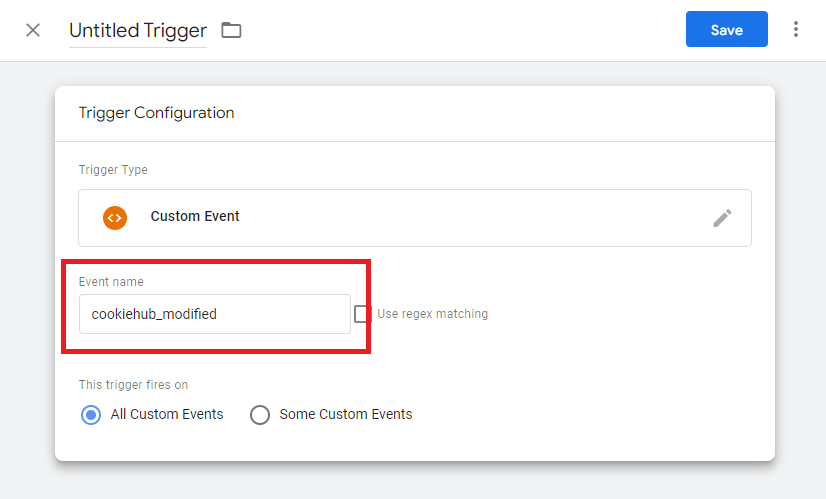
- Click Save.
-
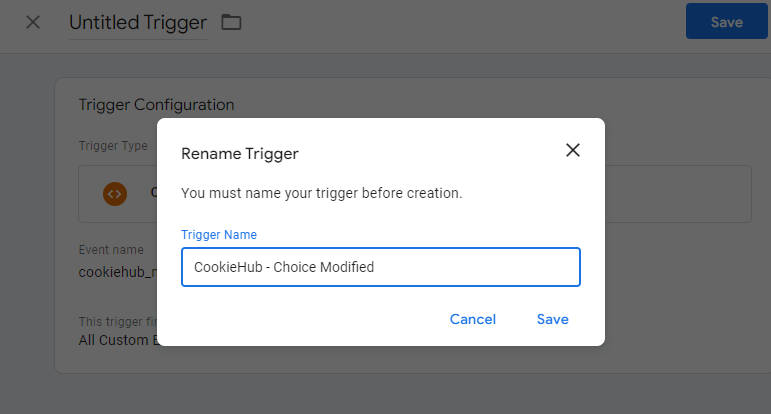
Name the trigger CookieHub – Choice Modified and click Save again.
Configure additional consent for a tag
Follow these steps to enable additional consent for tags that don’t support Consent Mode:
- Go to Tags in your GTM container and select the tag you want to configure (for example, Facebook Pixel).
-
Click Tag Configuration.

-
Expand Advanced Settings.

-
Expand Consent Settings.

-
Check Require additional consent for tag to fire and select the appropriate Cookie category for this tag (for example,
analytics_storagefor analytics tags).
-
Click outside the configuration panel to confirm.


Your configuration should now show the selected category under additional consent.
Update the firing triggers
To ensure the tag fires after the user makes a consent choice:
-
Click the Triggering section for the tag.

-
Add a new trigger by clicking the + icon.

-
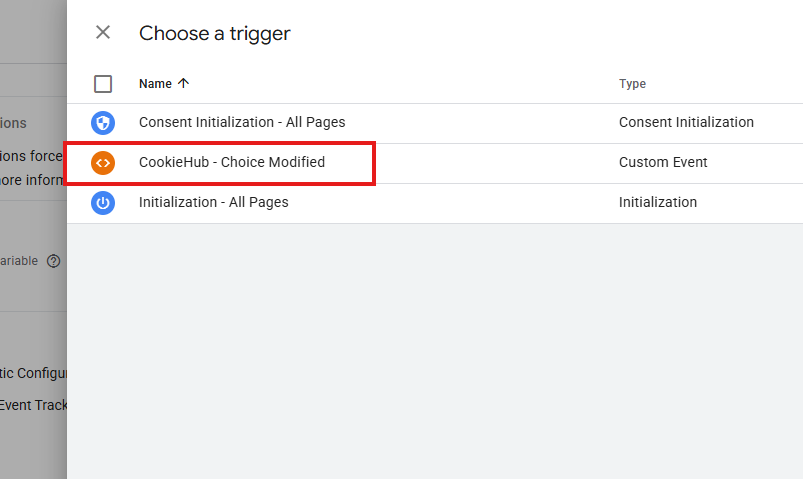
Select the CookieHub – Choice Modified trigger.
-
Save the tag.


Now, the tag will fire when:
- The original trigger conditions are met, or
- The user updates their consent settings after the initial page view.
After completing these steps
Your tags that do not have built-in Consent Mode support will respect user consent, and they will fire correctly even if the user provides consent after the first page view.