
How to use Consent Overview in GTM
Google Tag Manager (GTM) includes a Consent Overview feature that helps you manage and audit your container’s consent setup. This tool shows which tags support built-in consent and which tags require additional consent configuration. Using this feature ensures that all tags comply with your consent requirements.
Why use Consent Overview?
- Quickly identify tags that do not have built-in Consent Mode support.
- Check which tags are already configured for additional consent.
- Verify that your container setup aligns with your consent strategy.
Enable Consent Overview in GTM
Follow these steps to turn on the feature:
-
In GTM, click Admin in the top navigation bar.

-
Under the Container section, click Container Settings.

-
Check the option Enable consent overview.
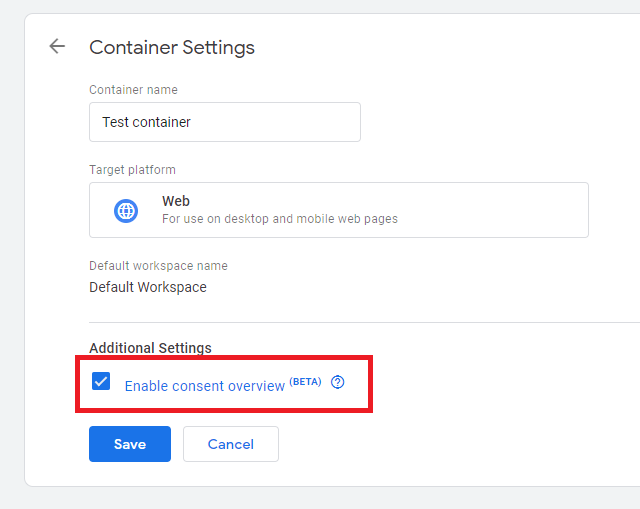
- Click Save.


Once enabled, you’ll see the Consent Overview icon in the Tags section.
View the Consent Overview
- Go to Tags in your GTM container.
-
Click the Consent Overview icon at the top of the page.


Review the list of tags:
- Built-in consent: Tags that support Google Consent Mode automatically.
- Additional consent configured: Tags that have custom consent requirements set.


This view helps you identify tags that still need configuration for compliance.