
How to install CookieHub in Shopify
CookieHub integrates seamlessly with Shopify using the Shopify Customer Privacy API. This ensures your store complies with GDPR, CCPA, and other privacy regulations by activating cookies and scripts only after user consent.
Before you begin
If you are using Google Tag Manager, follow this guide instead of the steps below.
Install CookieHub in Shopify
- Find your CookieHub implementation code.
-
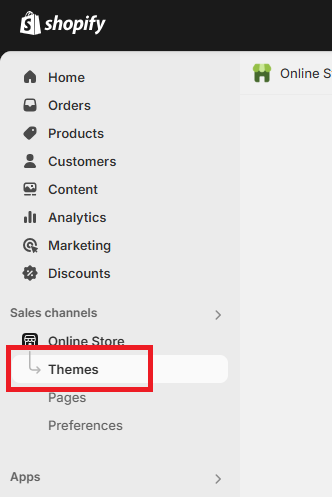
Log in to Shopify and go to Online Store → Themes.
-
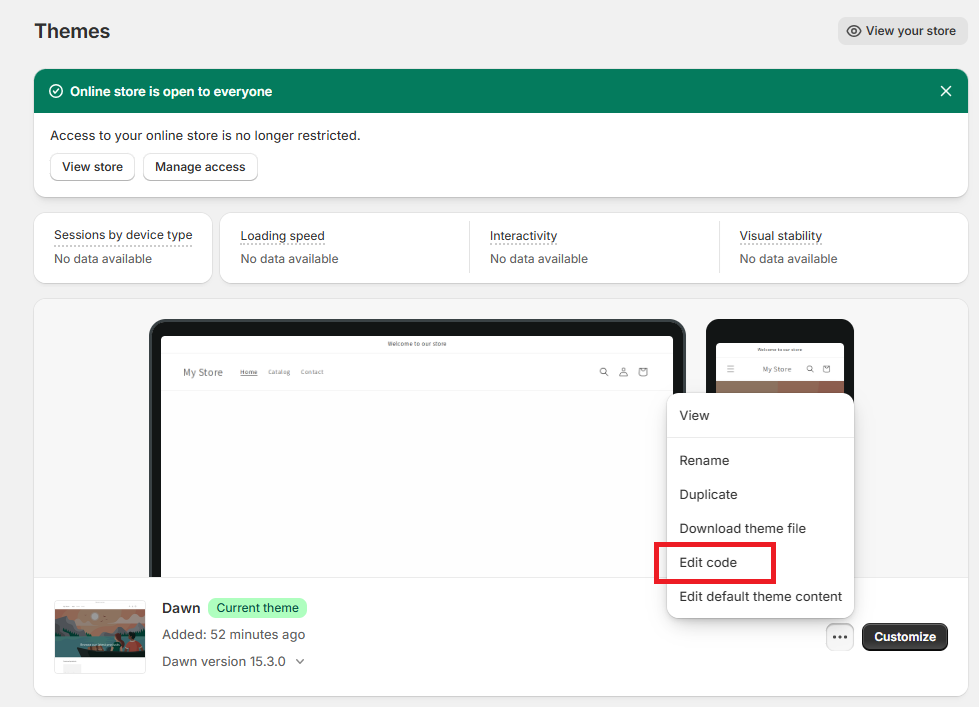
Click the three dots next to Customize and select Edit code.
-
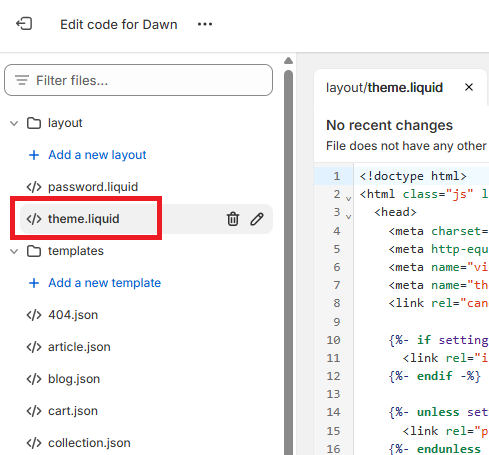
Under Layout, open the theme.liquid file.
-
Paste the CookieHub implementation code just after the opening
<head>tag.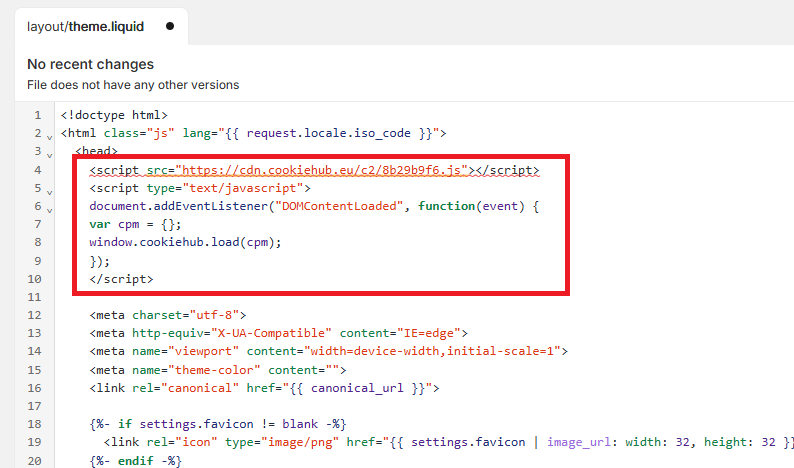
- Click Save.
- Make sure Automatic Cookie Blocking is enabled in your CookieHub dashboard. This allows CookieHub to send consent events to Shopify’s Customer Privacy API automatically.
Disable Shopify’s built-in cookie banner
To prevent duplicate banners and ensure CookieHub manages consent correctly:
-
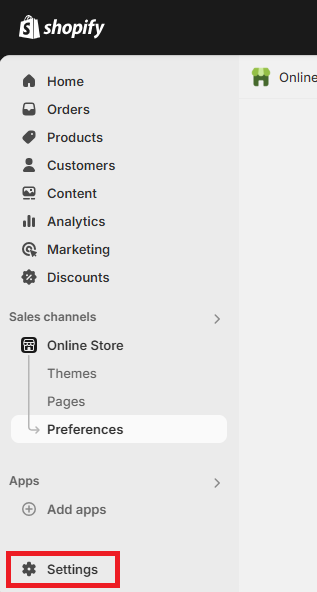
In Shopify, go to Settings (bottom left).
-
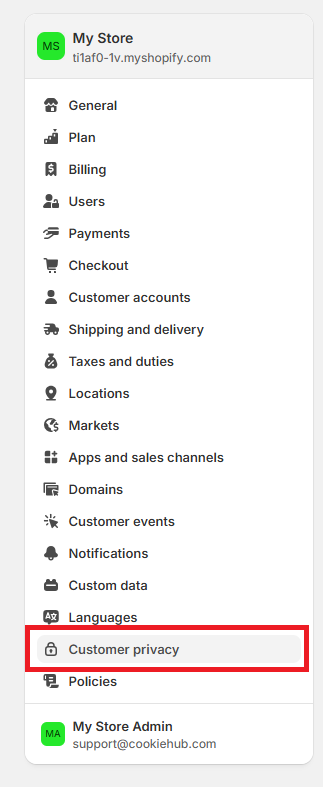
Click Customer Privacy.
-
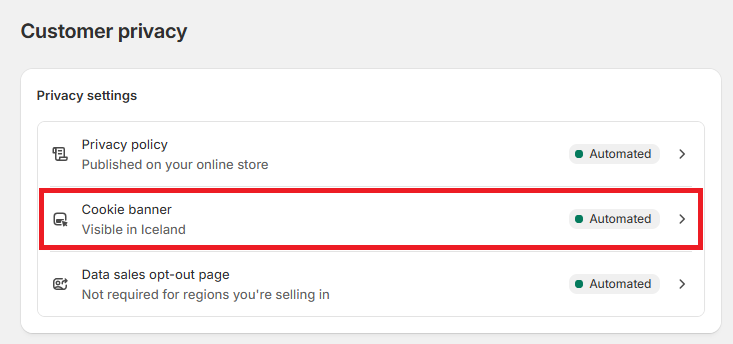
Open the Cookie banner section.
-
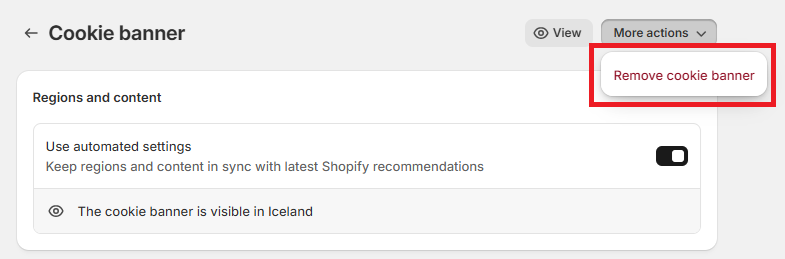
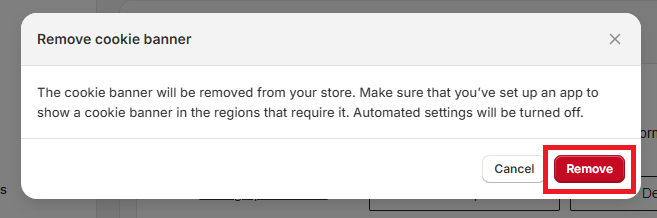
Click More actions → Remove cookie banner and confirm by clicking Remove.
-
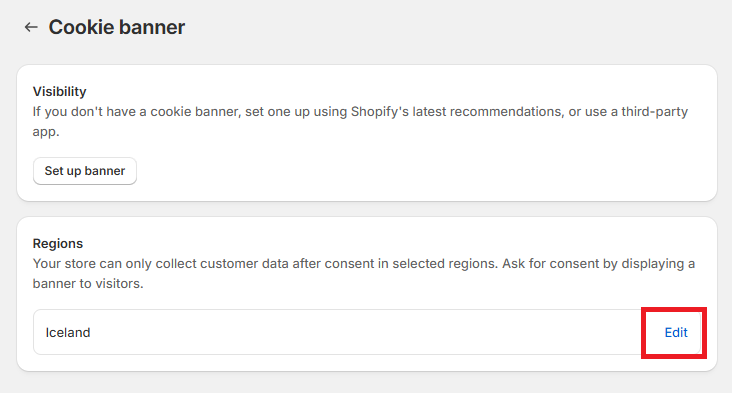
Click Edit in the Regions section.
-
Select all countries where you want the CookieHub dialog displayed. This list should match the regions configured in your CookieHub dashboard.
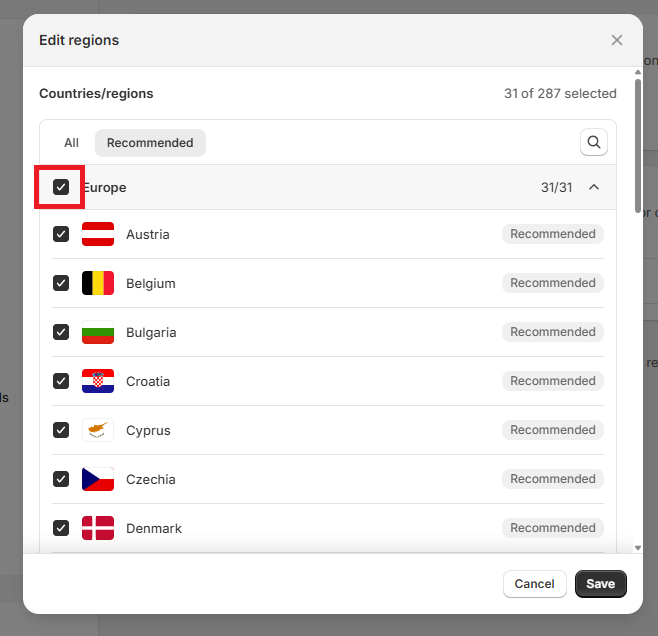
- Click Save.
CookieHub is now active and integrated with Shopify’s Customer Privacy API.